How to organize interview footage by story beats
By Eran Strassburg · Updated 2026-10-10
The short answer
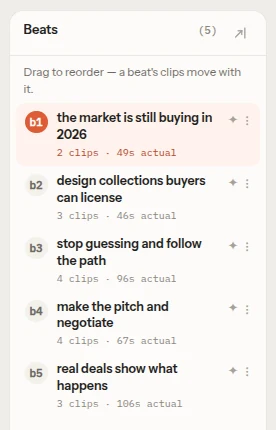
A beat is one step in the story: a point where the subject, the stakes or the direction changes. To organize interview footage by beats, name each step in a few words, then file every usable clip under exactly one of them, in order. In FirstCut each beat is a named group of real clips that you can rename, reorder, empty or delete, and moving a beat moves its clips with it.
Beat, clip and word: three different things
- A beat is an idea: one step of the story. It has a name and no timecode of its own.
- A clip is footage: one span of a source file, with an in point and an out point.
- Words are what is said inside a clip.
A beat is made of one or more clips. Mixing the two up is the usual reason an edit feels shapeless: a bin sorted by clip tells you what you have, and a list of beats tells you what the piece says.
How many beats a piece needs
There is no fixed number, but the count should grow much more slowly than the running time. A 5-minute piece usually reads well with three to five beats. A 20-minute piece rarely needs more than seven or eight. If every clip is its own beat, the beats are not doing any work.
FirstCut's own story templates use between three and seven beats each.
Naming beats so they are useful
Name a beat for what it does in the story. "Intro" and "Part 2" say where it sits. "Why the usual fix fails" says what it is for, and tells you at once whether a clip belongs there.
Keep each name unique. You will refer to beats by name when you give notes.
What to do with a clip that fits two beats
Put it in one. A clip that sits in two places plays twice. Choose the beat where the line does the most work and let the other beat stand on its remaining clips. If the other beat falls apart without it, the two beats may really be one.
Reordering beats to test a structure
Once clips are filed under beats, trying a new structure is a matter of moving a few names. Open on the result and flash back, or hold the turning point until late. In FirstCut you drag a beat and all its clips travel with it, then press play to hear whether the new order holds.
For bigger changes, see how to try different story structures on the same footage.
Asking for a change to one beat
In FirstCut each beat can carry its own instruction for the AI assistant: focus it on one point, expand it, tighten it, strengthen it, or connect it to the next. The instruction stays on that beat, and the assistant acts on it when you send your edits.
You can also add an empty beat and fill it by dragging clips in, or ask for a clip that is not in the cut yet.
Questions
Can I add my own beat?
Yes. You can add an empty beat and fill it by dragging clips in or by asking for a clip.
Can two beats have the same name?
No. Names must be unique so an instruction lands on the right beat.
What happens to the clips when I delete a beat?
You choose. The beat can go with its clips, or its clips can be kept and moved into the neighbouring beat. A deleted beat can be restored.
Related guides
- How to find the story in your interview footage
- How to try different story structures on the same footage
- A paper edit that stays connected to the footage
- Paper edit an interview with FirstCut
Try it on your own footage
FirstCut is free to try with no install and no credit card. Start a rough cut → · Or open the live demo, which needs no account.